Game Link
Drive your toy from any game that supports Lovense Game Mode or Buttplug.io. Captain Hardcore, Wild Life, VAM, ULTRAKILL, dozens more.
Game Link lets a video game drive your toy. ToyControl speaks both of the two protocols games use today: Lovense Game Mode and Buttplug.io / Intiface. Whatever the game expects, point it at ToyControl and your toy responds.
You install the small helper app, paste the game's connection info, and the game does the rest. For a list of supported games, see Every game that works with your toy.
What it is
Game Link gives you two ways to connect, both running through the helper app:
- Lovense bridge. ToyControl pretends to be a Lovense toy on your home network. Any game that talks to Lovense toys (Captain Hardcore, Wild Life, Heat VR, vamX, Dominatrix Simulator, and many others) finds ToyControl and treats it like a Lovense.
- Intiface bridge. ToyControl talks to games and plugins that expect Intiface Central (LoveMachine for the Illusion games, VAMSync for Virt-A-Mate, Telekinesis for Skyrim, the Game Haptics Router, and dozens more). Same setup, ToyControl takes Intiface's place.
To the game, you have whichever toy it was expecting. In reality, your toy might be a Tremblr, a Hismith machine, a Kiiroo KEON, a Lovense Lush, or anything else ToyControl supports. The translation is handled for you.
Who it is for
- Anyone who plays a VR game that supports Lovense toys (Captain Hardcore, Wild Life, Heat VR).
- Anyone who plays a game with a Buttplug.io / Intiface plugin (Skyrim with Telekinesis, Illusion games with LoveMachine, ULTRAKILL with UKButt, FFXIV with Vibe Plugin, dozens more).
- Anyone using VRChat plugins that talk to either protocol.
- Anyone using the Game Haptics Router to route Xbox controller rumble from any game to a toy.
For a full list of supported games, see Every game that works with your toy.
The in-app game guide
Inside the Game Link tab there is a searchable "How to connect a game" panel. Type any game name (Cyberpunk, Skyrim, Honey Select, Lethal Company) and the matching card shows the full setup steps, with a one-click button that copies the right ToyControl address.
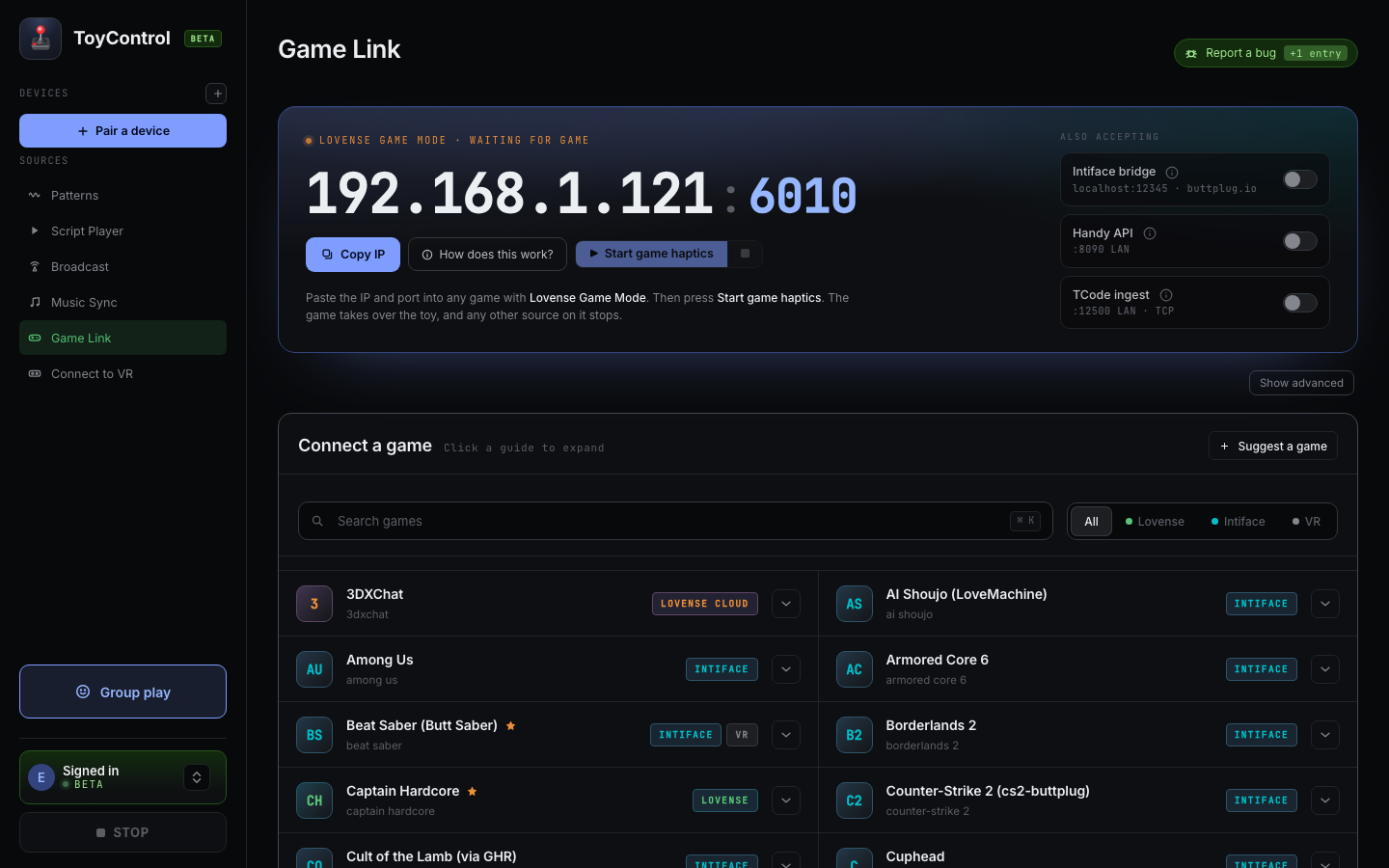
61 games covered as of 2026-05-16. See Every game that works with your toy for the broader catalogue and per-game articles.
How it works
You need three pieces:
- The ToyControl helper app running on your computer. See How to install the helper app.
- A toy paired with ToyControl.
- A VR game that supports Lovense, running on the same network.
Then in ToyControl:
- Click Game Link in the sidebar.
- You will see a connection target like
192.168.1.42:6010. - In the VR game, open the interactive settings. Look for "Lovense", and a place to enter an IP and port.
- Paste the IP and port from ToyControl into the game.
- In the game, hit Scan or Connect.
The game will find ToyControl, treat it as a Lovense toy, and start sending commands.
Turning on the Intiface bridge for Buttplug games
A second toggle on the Game Link tab, Intiface bridge, accepts games and plugins that speak the Buttplug protocol (Game Haptics Router, VaMSync for VAM, Telekinesis for Skyrim, LoveMachine for the Illusion games, dozens more). It is off by default.
Before turning it on:
- Quit Intiface Central if it is running. ToyControl and Intiface Central both want the same port; only one can hold it. Right-click its system-tray icon and choose Quit. If you do not have Intiface Central installed, skip this step.
To turn it on:
- Open the Game Link tab in ToyControl.
- Find the Intiface bridge toggle (it sits next to the Lovense Game Link target).
- Turn it on. A connection URL appears next to the toggle (it starts with
ws://). - Copy the URL and paste it into your game or plugin's server URL field.
If no URL appears, the helper is failing to bind the port; Intiface Central is the usual culprit. See troubleshooting below.
ToyControl Game Link vs Lovense Remote Game Mode
If you know the Lovense ecosystem, this is the practical difference:
- Lovense Remote app's Game Mode runs on your phone or computer. Only Lovense toys connect through it.
- ToyControl Game Link runs through the helper app on your computer. Any supported toy (Tremblr, Hismith, KEON, all Lovense toys, and more) responds.
Games that ask for an "IP and port" connect to either. The win with Game Link is that you are not limited to Lovense toys, and the toy is already paired in your browser, not in the Lovense Remote app.
Confirming it works
The Activity log on the Game Link tab shows every command the game sends. When you play, you should see a steady stream of Vibrate, Rotate, or Pump commands.
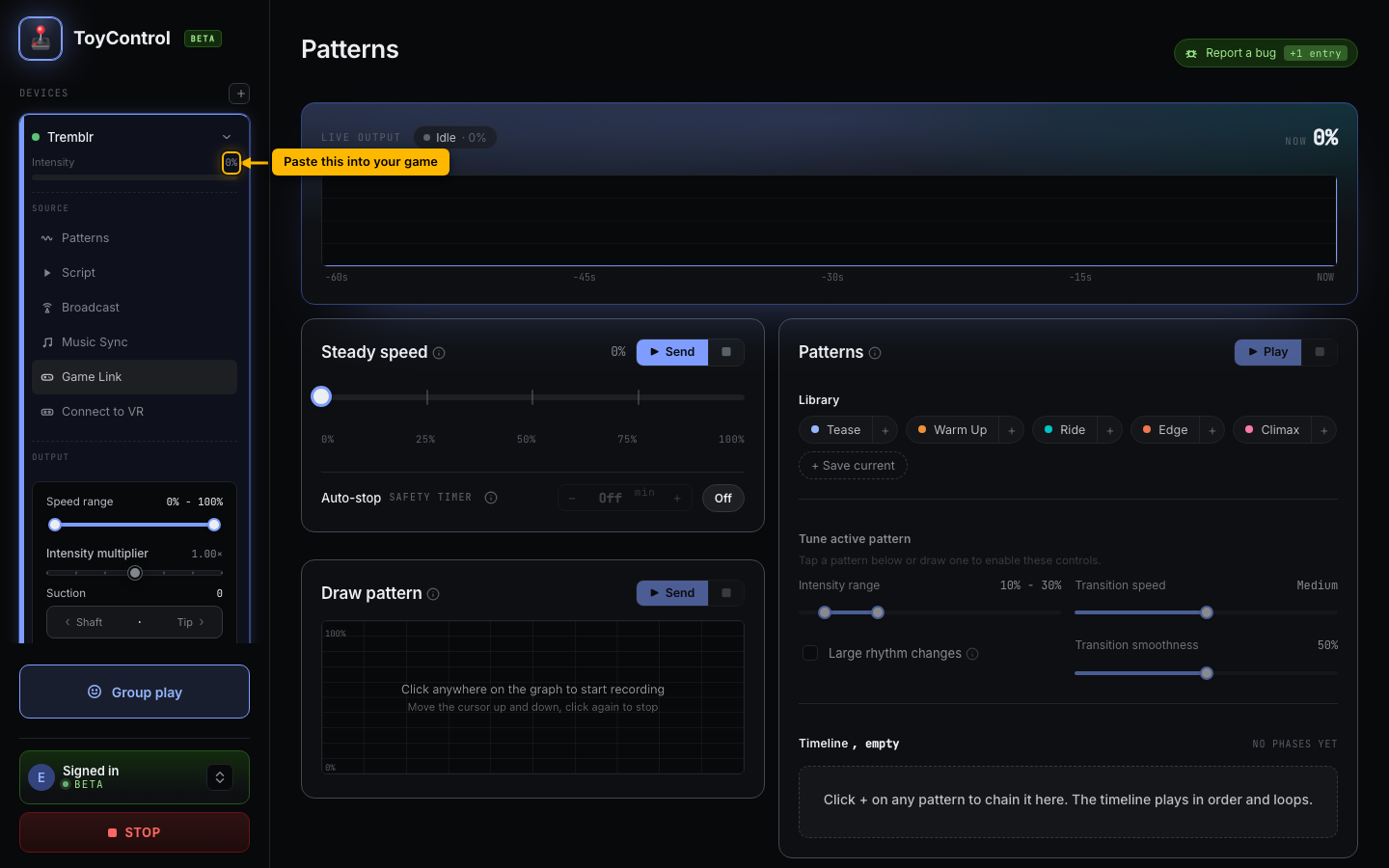
If the log is empty, the game has not connected yet. Double-check the IP and port. The game and ToyControl have to be on the same Wi-Fi.
Games that work
Games we have tested:
- Captain Hardcore. Menu > Teledildonics > Lovense > Settings > paste IP and port > Scan.
- Heat VR. Settings > Devices > Lovense > IP and port.
Many other VR games that mention Lovense in their settings also work, since they use the same protocol. If a game has a "Lovense Connect" or "Lovense IP" option, Game Link will accept it.
Troubleshooting
Intiface bridge shows no URL after I turn it on
The helper is failing to bind the port. The likely cause is that Intiface Central is also running (re-check your system tray; right-click and Quit if it is). Then turn the Intiface bridge toggle off and on again, the URL should appear.
If the URL still does not appear and you are technical, open Command Prompt and run netstat -ano | findstr 12345; whatever process shows up is holding the port.
Game cannot find ToyControl
- Make sure the helper app is running. Its icon should be in your menu bar (Mac) or system tray (Windows), and ToyControl's sidebar should show a green Helper dot.
- Confirm the game's computer and ToyControl's computer are the same machine (or at least on the same Wi-Fi).
- Check the IP and port in ToyControl's Game Link tab. Copy and paste; do not retype.
Wrong IP
If your computer is connected to several networks at once (for example Wi-Fi plus a wired connection, or a VPN), ToyControl may show one address while the game looks at another. Try each one listed.
PC and headset not on same LAN
If you stream the VR game from your PC to a VR headset, both ends are running on the PC. The IP is your PC's local IP. The headset itself does not need to connect.
If you stream Captain Hardcore on a standalone VR headset, the game on the headset needs to reach ToyControl on your PC. Both must be on the same Wi-Fi.
Firewall blocks the helper
The first time you run the helper app on Windows, the firewall prompts you to allow it. Click Allow for Private (or both Private and Public if asked). On Mac, the firewall is more permissive; you usually do not need to do anything.
Commands appear in the log but the toy does not move
- Check the per-device intensity slider in the sidebar.
- Check the speed range max in the bottom bar.
- Try Test toy to confirm the toy itself responds.
See My toy connected but is not moving.
Tuning the feel
Game Link respects the same per-device controls as every other source:
- Per-device intensity scale under the toy's row in the sidebar.
- Speed range in the bottom bar.
- Multiplier for the whole session.
If a game drives the toy too hard, set the multiplier to 0.7x. If it is too gentle, try 1.3x. The game does not need to know.
Privacy
The helper app listens only on your local network. The VR game finds ToyControl by scanning your home Wi-Fi. Nothing leaves your house. No game-vendor cloud is involved.
Try it
If your toy is paired and you have a Lovense-compatible VR game:
- Install the helper app.
- Open Game Link in ToyControl.
- Copy the IP and port.
- Paste into the game's Lovense settings.
- Start the game.
Two minutes of setup, instant translation forever after.