Video Player
Play a local video on your computer and the matching script auto-loads. Drag and drop, click play, the toy follows.
The Video Player is the simple half of ToyControl. Drop a local video file in, ToyControl looks up the matching script in your library, and you hit play. The video plays in your browser; the toy follows the action.
What it is
A built-in video player tuned for use with scripts. Drag a video file from your computer, it appears in the player. If a script in your library has the same filename, it auto-loads.
The same script can be played by any paired toy. A stroker reads it as motion; a vibrator reads it as intensity. Either way, the toy moves with the video.
Who it is for
- Users with 2D videos on their computer.
- Anyone who downloaded a community script and wants to play it without a VR headset.
- Beginners who do not have a VR headset or do not want to mess with the helper app.
If you have a VR headset, see Connect to VR instead.
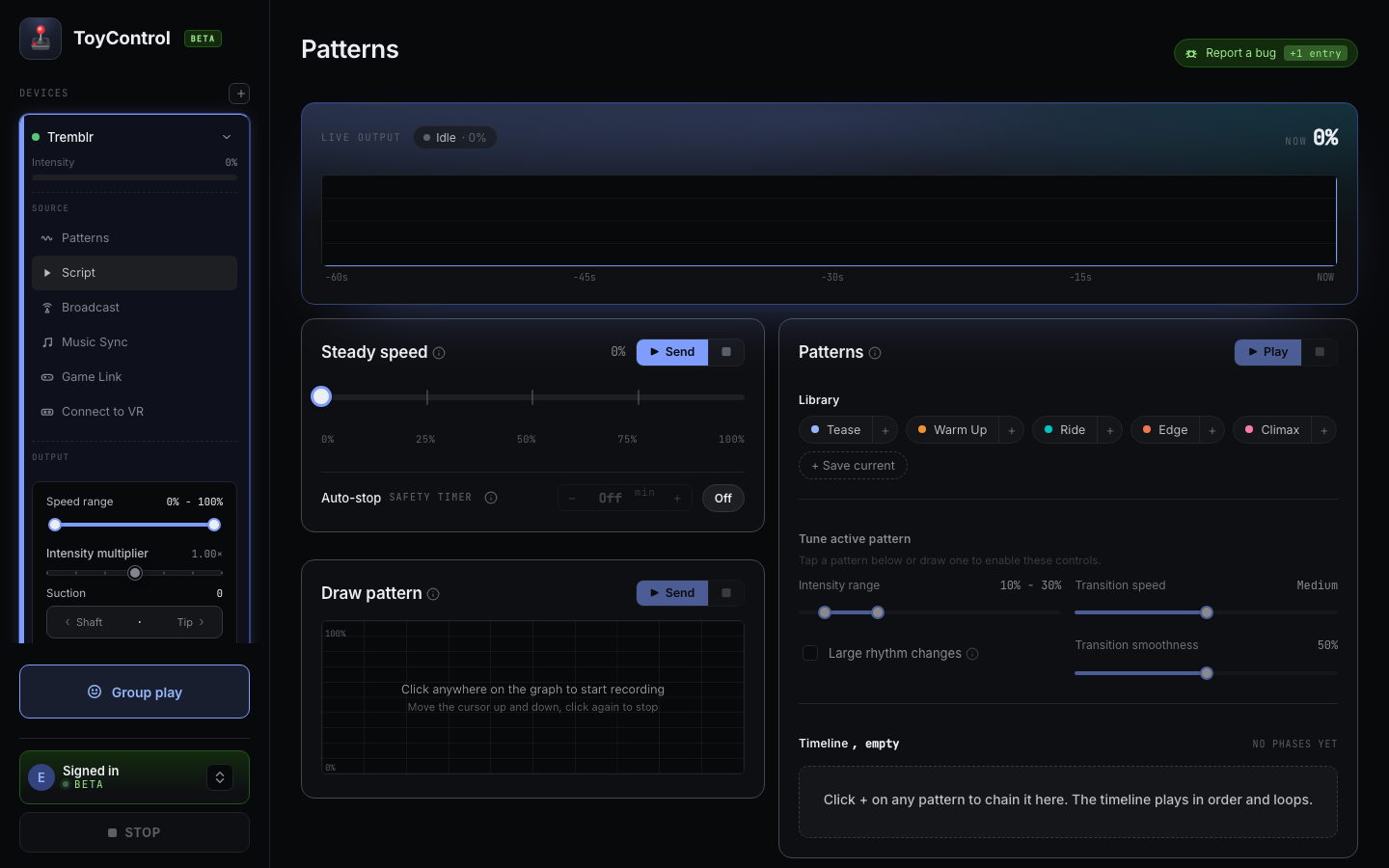
Once a video is loaded, the player shows the video and the controls:
How it works
The whole flow is three steps.
- Drag a video into the Video Player. Or click "open video" to use a file picker.
- The matching script auto-loads. This works when the script has the same base filename as the video. See How auto-match finds the right script.
- Hit play. Standard video controls: play, pause, seek, volume, fullscreen.
The video plays. The toy follows.
Supported video formats
The Video Player uses your browser's built-in video support, so anything your browser can play, the Video Player can play. In practice this means:
- MP4 (most common).
- WebM.
- MKV (usually).
Some MKV files use rare codecs your browser does not support. In those cases, use a separate video player and load the script manually in Script Player.
Sync controls
The same sync controls as the Script Player apply:
- Set First Cue (C key). When you see the first action, press C. The script aligns.
- Fine-tune slider. ±500 ms nudge for small offsets.
- Reset to clear the offsets.
See The script and video are not in sync.
Tuning the feel
Standard tuning controls in the bottom bar work the same:
- Multiplier to scale the whole session.
- Speed range to set a floor and ceiling.
- Per-device intensity to tune each toy.
For scripts that feel too soft on a vibrator, turn on Stretch in the Script Player.
What does not work
A few intentional limits:
- Streaming services. You cannot point Video Player at a YouTube URL. It is for local files only. (DRM-protected content cannot be played anyway.)
- HDR content. If your video is HDR, the browser may play it in standard range. Usually fine.
- Casting to a TV. Video Player runs in the browser tab. You can use your OS's mirroring (AirPlay, Chromecast on the tab, HDMI cable) to put the video on a TV, but the toy stays paired with the laptop.
Try it
If you have a paired toy and a video with a matching script:
- Click Video Player in the sidebar.
- Drag the video file onto the drop area.
- Hit play.
If the script does not auto-load, click Script Player and click Import files to add it manually.