Loading a script
Two ways to bring scripts into ToyControl. Import individual files into your library, or point ToyControl at a folder on your computer.
A script (the file is named with .funscript on the end) is a small text file that tells your toy how to move with a video. To use one, you need to get it into ToyControl. There are two ways to do that. Pick the one that fits how you store your videos.
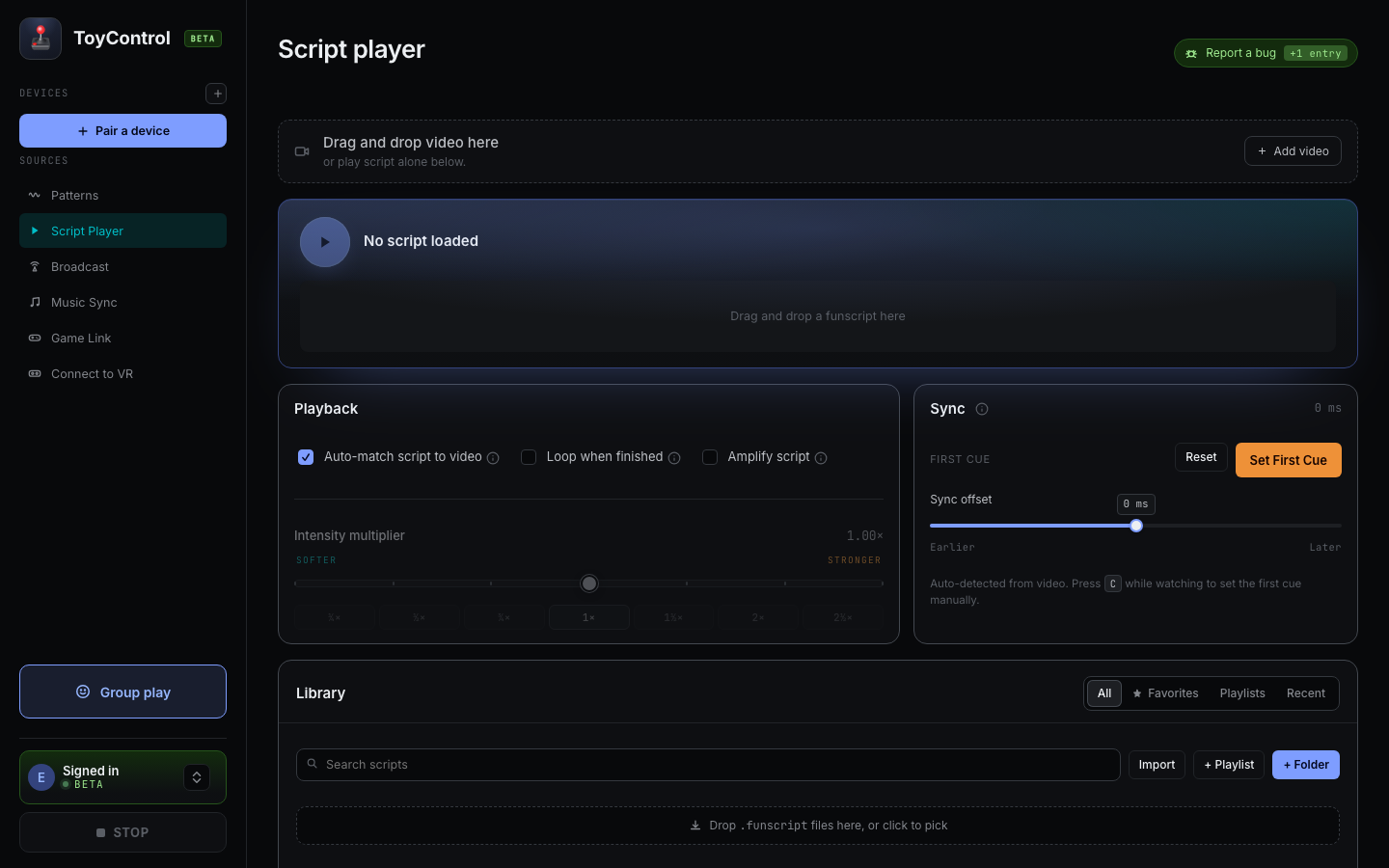
The Script Player tab before any script is loaded:
Way 1: Import a single script
Use this if you downloaded a script file on its own and you just want to play it once or twice.
- Open ToyControl and click Script Player in the left sidebar.
- Click the Import files button.
- A file picker opens. Find the
.funscriptfile on your computer and click Open. - The script now appears in your library on the right.
You can import several scripts at once by selecting more than one in the file picker. The files are copied into your browser's storage, so they stay in your library even after you close the tab.
Way 2: Point ToyControl at a folder
Use this if you keep your videos and scripts together in folders on your computer, and you do not want to import them one by one.
- Open Script Player.
- Click the + Folder button.
- A folder picker opens. Choose the folder where you keep your scripts.
- Your browser asks for permission to read that folder. Click Allow.
- ToyControl scans the folder and adds every
.funscriptit finds to your library.
The script files stay on your disk where they are. ToyControl just remembers where they are. Once per browser session, you may be asked to grant the same permission again.
Drag and drop for one-off play
If you only want to play a script once without saving it, drag the .funscript file from your computer straight onto the Script Player area. It loads and plays right away, but it is not added to your library.
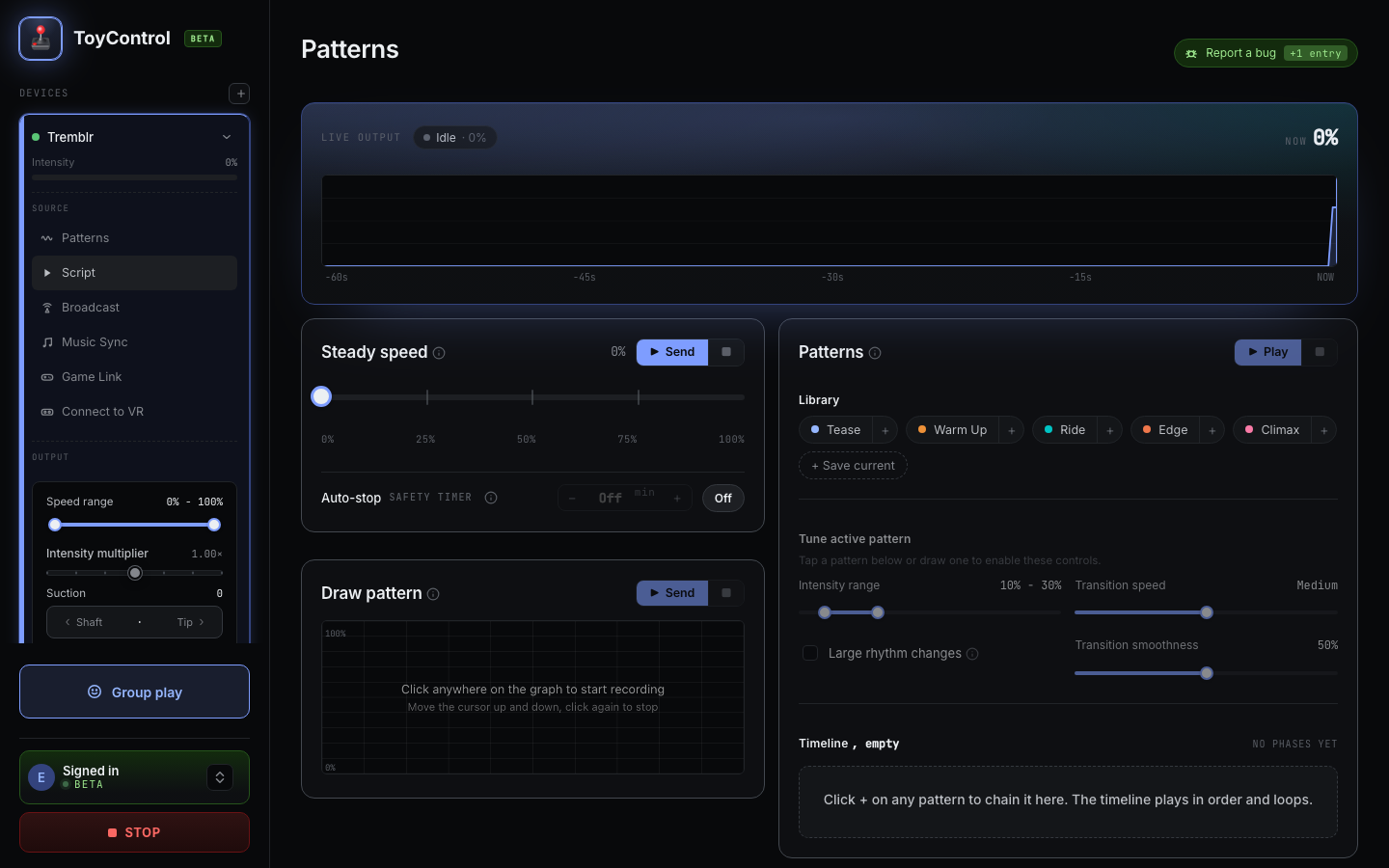
Once loaded, the Script Player shows the heatmap and the current position:
Loading the matching video
If you also have a video for that script, drag the video onto the Script Player. As long as the script and the video have the same filename (just different endings), ToyControl will pair them automatically. See How auto-match finds the right script.
For example, if your video is called scene_42.mp4, name the script scene_42.funscript. ToyControl will spot the match.
What format do I need?
ToyControl plays files that end in .funscript. A .funscript is a small text file that lists what the toy should do at each moment of a video. It is text, not video, and usually under a megabyte.
ToyControl does not play .csv, .json (other formats), or any other haptic file format. If your script is in a different format, you may need a converter from the script community. Read more in What is a funscript and how does it work.
A note on folder permissions
If you use + Folder to index a directory on your computer, your browser asks for permission once per browser session. After you grant it:
- ToyControl can read every
.funscriptin that folder. - ToyControl does not modify or delete files.
- ToyControl does not see files outside that folder.
- The folder must still exist on your disk; if you move it, you re-grant permission to the new location.
This is the browser's File System Access API in action. The permission is for that folder only, not your whole disk.
Where to find scripts
See Where to find scripts for your videos.
Next steps
- The script is loaded but feels out of sync? See The script and video are not in sync.
- Want to know more about how scripts work? Read What is a funscript.
- Ready to play with a VR scene? See How to play scripts on Meta Quest.