Visual tour of Remote Control rooms
What the lobby and rooms look like, with screenshots. Lobby cards, the people-finder list, and how rooms are created.
The Group play area in ToyControl has one main screen (the landing) that holds the entry points for everything: starting a room, joining one, browsing public rooms, and the live lobby of people looking to play.
For the text walkthrough of how rooms work, see How to start a remote play room.
The landing screen
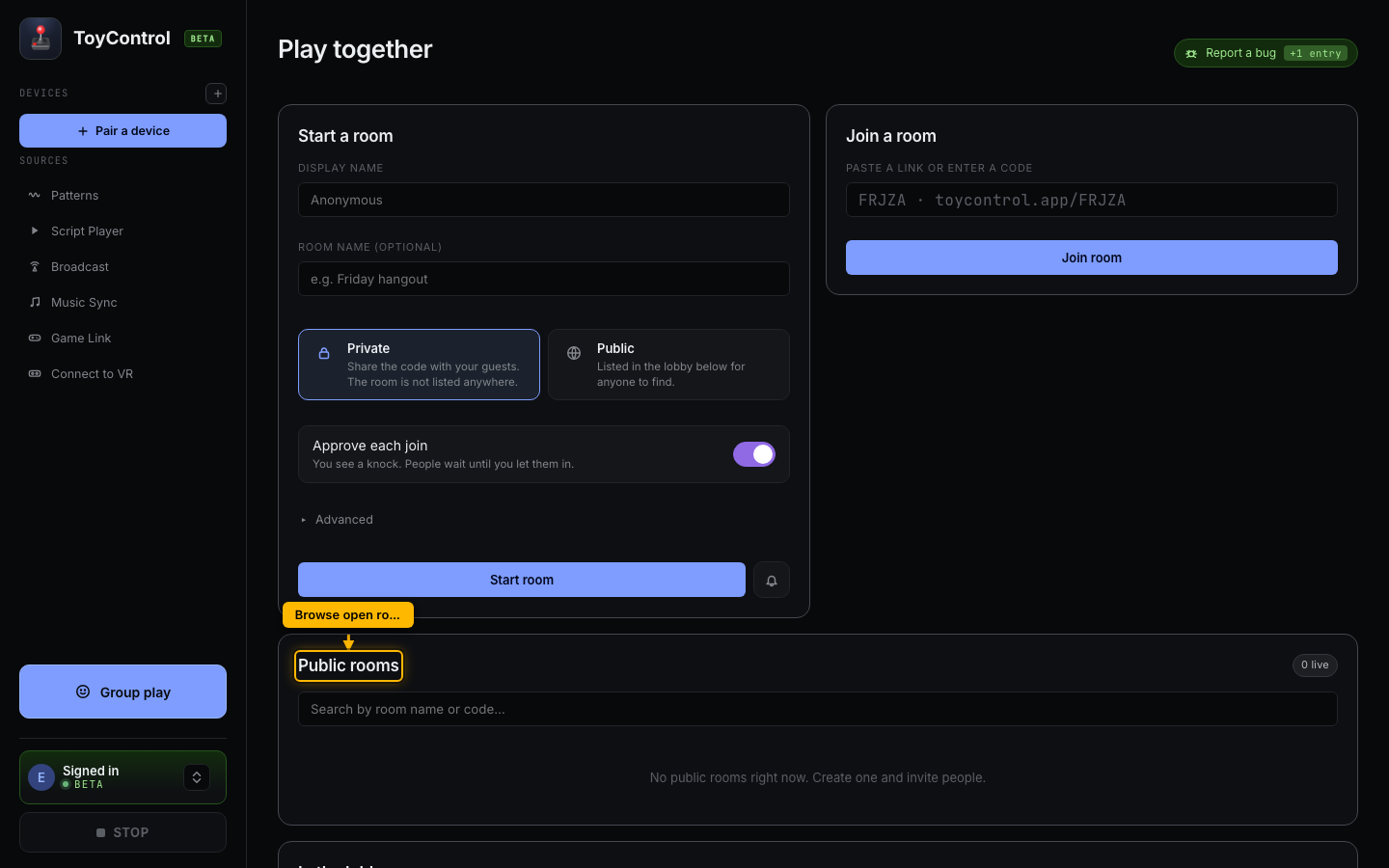
Two main cards at the top, then two sections below:
- Start a room. You are the host (and usually the receiver). Set a display name, optionally a room name, pick Private or Public, then click Start room to generate a 5-letter code and a shareable link.
- Join a room. Paste a room link or type a 5-letter code, then click Join room.
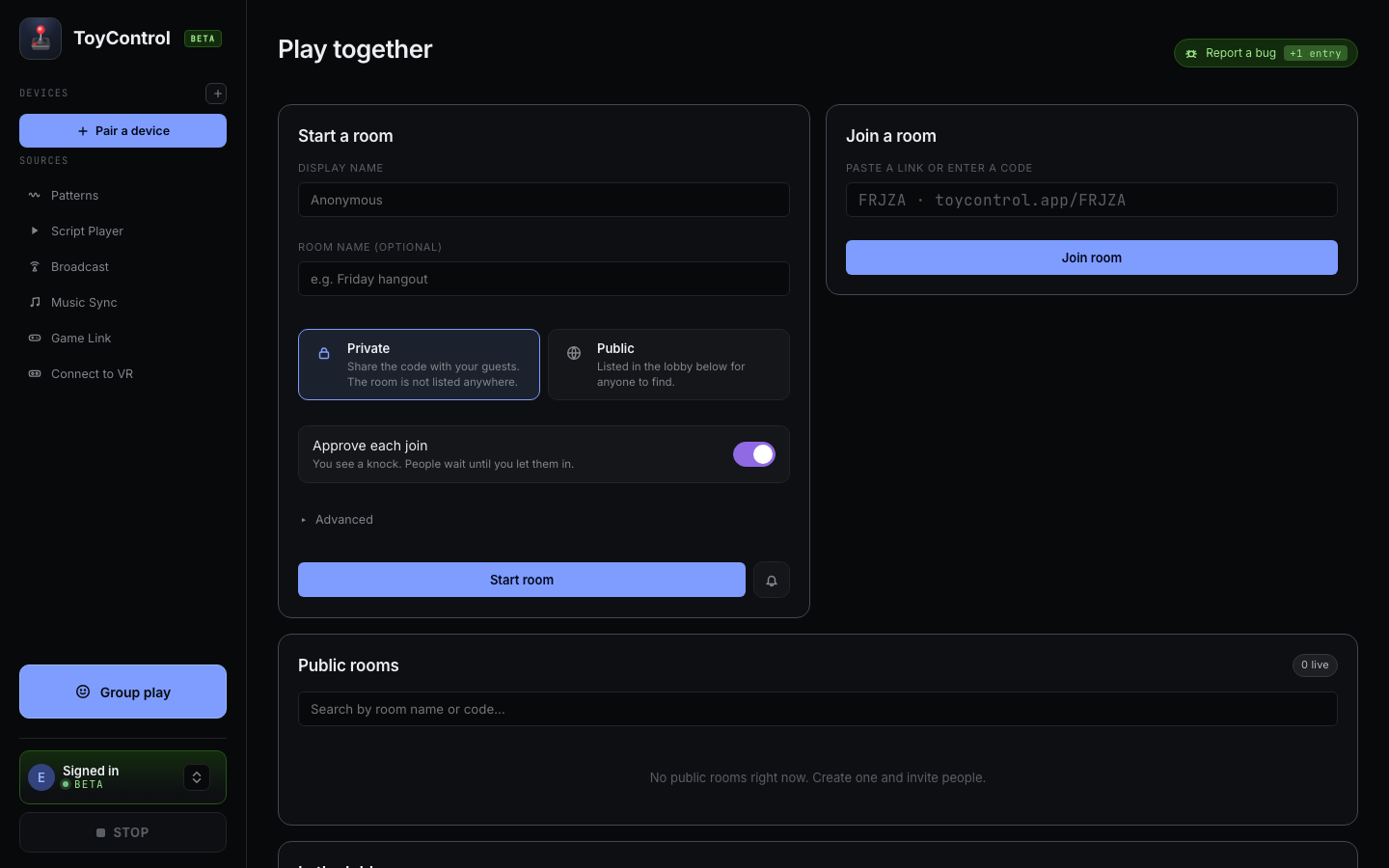
- Public rooms. A searchable list of rooms anyone can join.
- In the lobby. People currently looking for a session.
Public rooms and the lobby
The Public rooms section is a directory of rooms with the Public toggle on; anyone can join one with a click. Use the search box to filter by room name or code.
The lobby (further down the page) shows people not currently in a room. Each entry shows the person's display name and what they want.
You can search the list, change your own status, and join someone you click on.
Common scenarios
"I want a private session with my partner"
- In the Start a room card, choose Private.
- Click Start room.
- Copy the 5-letter code or the room link.
- Send it to your partner. They join.
"I want to find a stranger to control"
- Scroll to the In the lobby section.
- Set your status to "I want to control".
- The lobby shows people looking to be controlled.
- Click one. You enter their room.
"I want to join a specific room someone told me about"
- In the Join a room card on the right of the landing, paste the link or type the 5-letter code.
- Click Join room.
Or, paste the room URL into your browser address bar if your friend sent a link.
What you do not see in this view
The session itself (the slider, the toy controls) is on a different screen. Once you join a room, you switch to the in-room view with:
- The big speed slider (controller side).
- Quick speed presets.
- Random Tease, Pulse, Draw Pattern buttons.
- Chat.
- Camera and mic toggles.
The in-room view does not have a screenshot here because it depends on whether you are the controller or the receiver. See How to start a remote play room for what each side sees.
Why public rooms have their own section
Below the Start / Join cards, Public rooms is a directory of rooms anyone can join. Useful when you want to meet someone new or join a group session.
Public rooms can be filtered by name or code from the search box. The receiver's safety limits (max speed cap, Stop button) still apply.
See Public rooms vs private rooms.
Privacy in the lobby
Your display name is visible to anyone in the lobby. It can be your real name, a screen name, or "Anonymous" (the default).
What is not visible:
- Your toy model or pairing state.
- Your settings.
- Your email or account info.
- Other rooms you have been in.
You can change your display name from your Account page.