Adding a second toy
Pair a second toy in the same browser session. ToyControl handles two, three, or more toys at the same time.
ToyControl can run several toys at the same time in the same browser. You add a second toy the same way you added the first. Each toy gets its own tab in the main area and its own row in the sidebar. The first one keeps doing what it was doing.
When to add a second toy
A few common cases:
- Couples in the same room want one toy each.
- One person wants stroker + vibrator for combined sensation.
- Layered sessions with a vibrator on one part of the body and a wand on another.
- Following another toy where toy A plays the script and toy B mirrors with its own intensity.
How to pair the second toy
- In ToyControl, click the + button in the Devices section of the sidebar.
- Pick the second toy from the catalog.
- Confirm in the Bluetooth window your browser shows.
- The second toy appears as a new row in the sidebar with its own green dot.
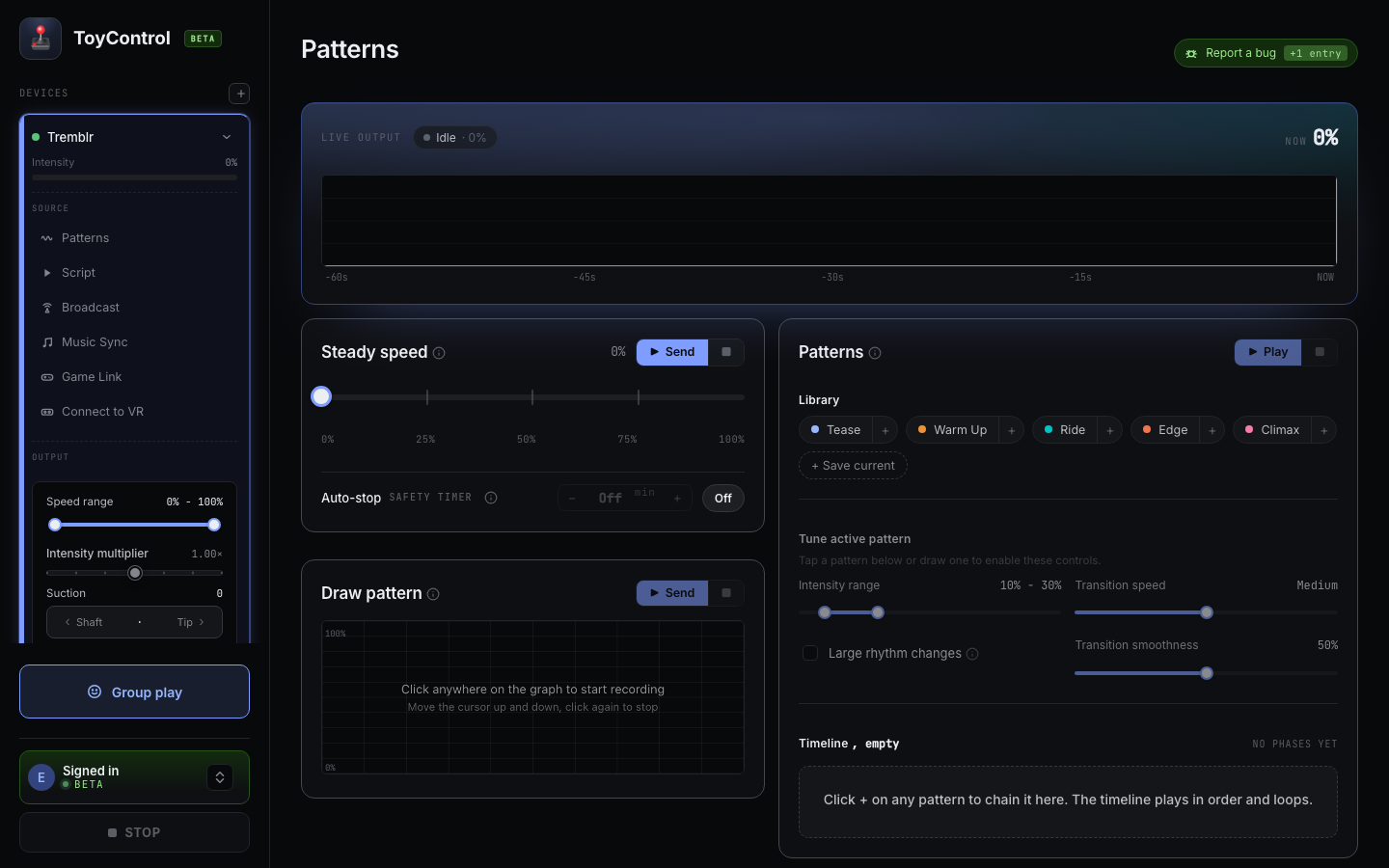
Both toys are now paired. The sidebar shows a row for each:
What each toy gets
When you click on a toy's row in the sidebar, the main area switches to that toy's tab. Each tab has its own:
- Source (Patterns, Script Player, Broadcast, Music Sync, Game Link, Connect to VR). One toy can be playing a script while the other runs a pattern.
- Speed range (min and max).
- Multiplier.
- Per-device intensity (0-150%).
- Sync offset (for scripts).
Settings are independent. Changing one toy's intensity does not change the other.
How many toys can I connect
In practice, five to seven toys per browser session. The number is set by your browser, not by ToyControl. Most users find two or three is plenty.
If you try to pair a sixth or seventh toy and the Bluetooth window does not respond, you have hit the cap. Disconnect a toy you are not using to free a slot.
Running the same script on two toys
If you want both toys to do the same thing, use Follow another device. See Making one toy mirror another. The follower keeps its own multiplier and speed range, so a vibrator can mirror a stroker with appropriate intensity for each.
Running different sources on each toy
If you want toy A on a script and toy B on a pattern at the same time, just click each toy's row and pick a source. The two sources run in parallel without interfering. Patterns and Script Player do not share state.
Test each toy
After pairing the second toy, click its row to make it the active toy. At the bottom of the screen, click Test toy. It should ramp up and back down. Repeat for the first toy by clicking its row.
This confirms both toys are responsive independently.
Disconnecting
Click a toy's row in the sidebar to disconnect it. The row vanishes. The other toys keep playing.