How to pair your first toy
Step-by-step guide to connecting your Bluetooth toy to ToyControl in your browser. Works for Lovense, Tremblr, Hismith, and more.
Pairing your toy takes about a minute. You open ToyControl, click a button, pick your toy from a list, and confirm in the small Bluetooth window your browser shows. That is it.
This article walks you through the whole flow, including what to do before you start and how to test that it worked.
Before you start
Have these ready:
- Your toy, fully charged and turned on.
- A computer running Chrome or Edge on the desktop (smoothest path), or Chrome on Android, or Bluefy on iPhone/iPad. See Which browser works with ToyControl.
- Bluetooth turned on at the system level. Your laptop's Bluetooth icon should be visible in the menu bar or system tray.
- The website toycontrol.app open in your browser.
Close any other apps that might be talking to your toy. The Lovense Remote app, the Hismith app, or your phone's Bluetooth screen can all hold a toy and stop ToyControl from seeing it. A toy can only talk to one app at a time.
Your browser will ask for Bluetooth permission the first time you pair. This is normal. Click Allow.
Pair your toy
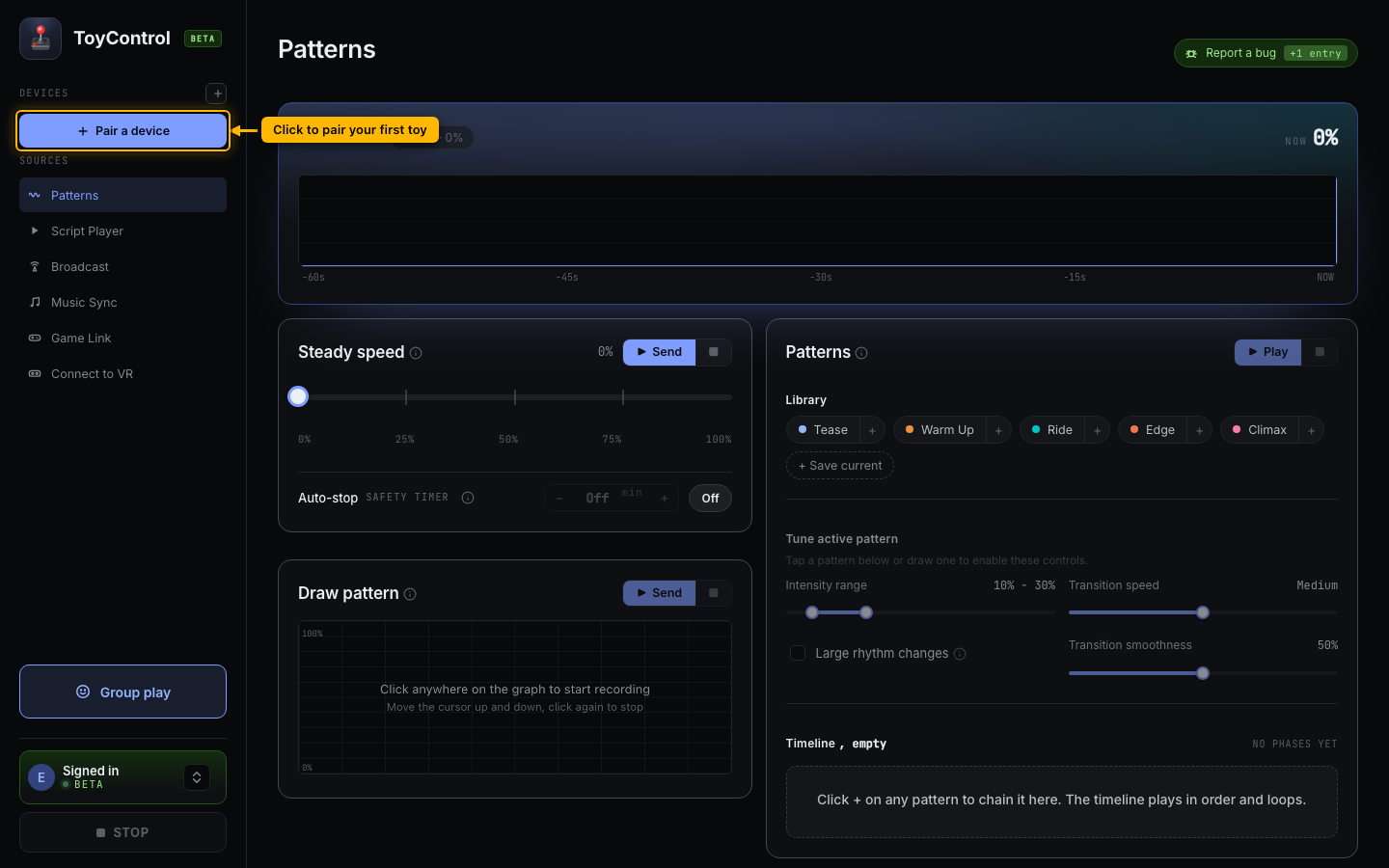
The sidebar starts empty. The button you want is highlighted below:
-
In the left sidebar, find the Devices area.
-
Click the + button.
-
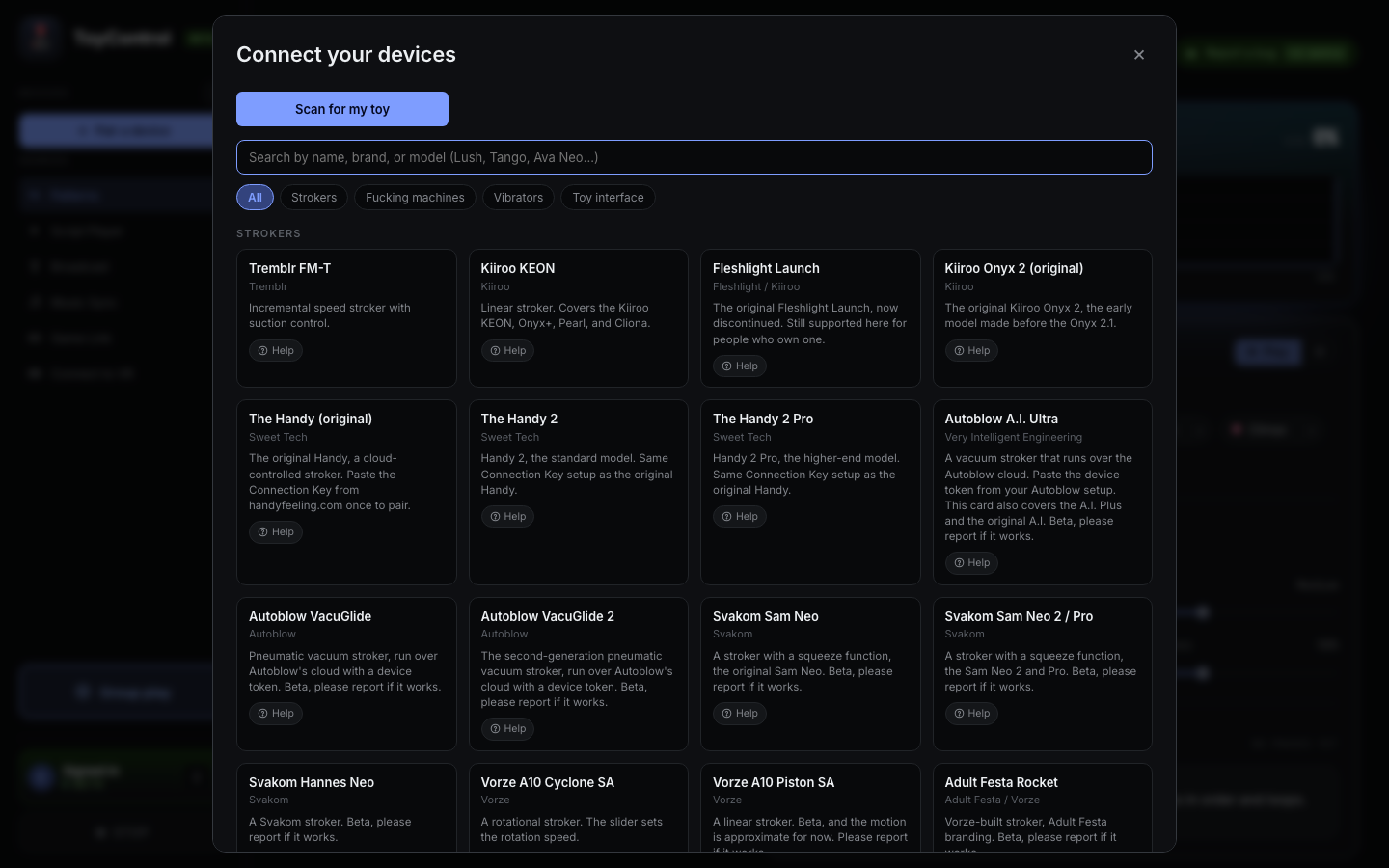
A catalog of supported toys opens. Pick your toy from the list, or type its name in the search box.
-
Your browser opens a small Bluetooth window with a list of nearby devices.
-
Click your toy in that window, then click Pair.
-
ToyControl adds a new row in the sidebar with a green dot next to your toy's name. That means it is connected.
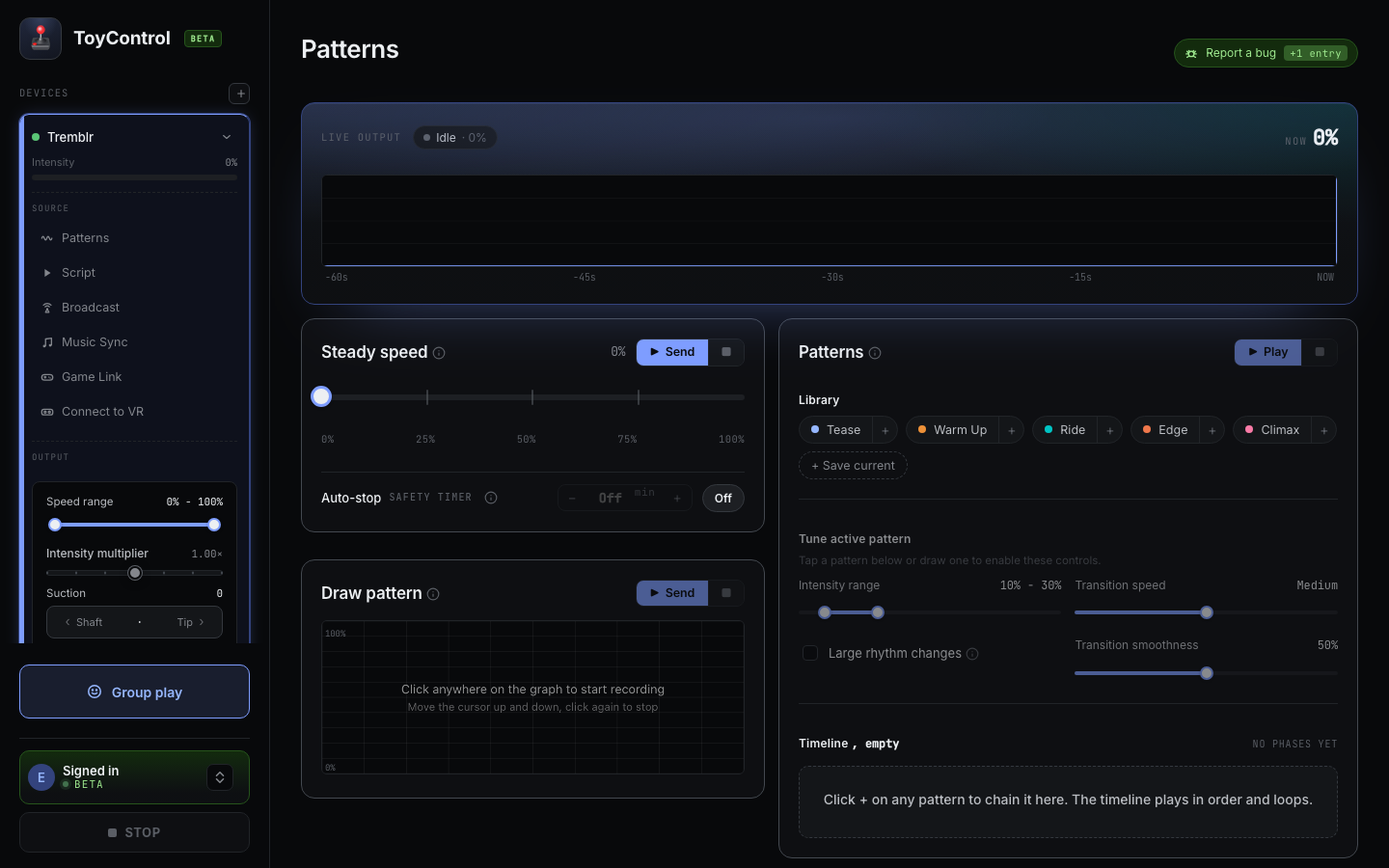
The first time you pair a Tremblr toy, you may see "Initializing..." for about half a second. That is normal. The app is waking the toy up. After that you are ready.
Test that it works
At the bottom of the screen, look for the Test toy button.
Click it. The toy should ramp up gently, hold a moment, then ramp back down. If you feel or hear it move, you are done.
If something did not work
- The toy did not appear in the Bluetooth window: see My toy is not showing up when I try to pair.
- The toy paired but did nothing when you clicked Test toy: see My toy connected but it is not moving.
- You want to add a second toy: open the + button again and repeat. ToyControl can run several toys at the same time.
Once your toy is paired, you can play scripts that sync to a video, build custom patterns, or invite a partner into a remote control room.