Visual walkthrough: your first ToyControl session
A screenshot-by-screenshot walkthrough from opening the website to your first toy responding. Five minutes if you have not done it before.
If you learn faster from screenshots than from instructions, this is the one. Every step of the first session, illustrated.
If you would rather read text, see How to pair your first toy.
Step 1: Open toycontrol.app
Open toycontrol.app in Chrome or Edge on a computer, or Chrome on Android. You will land on the welcome page.
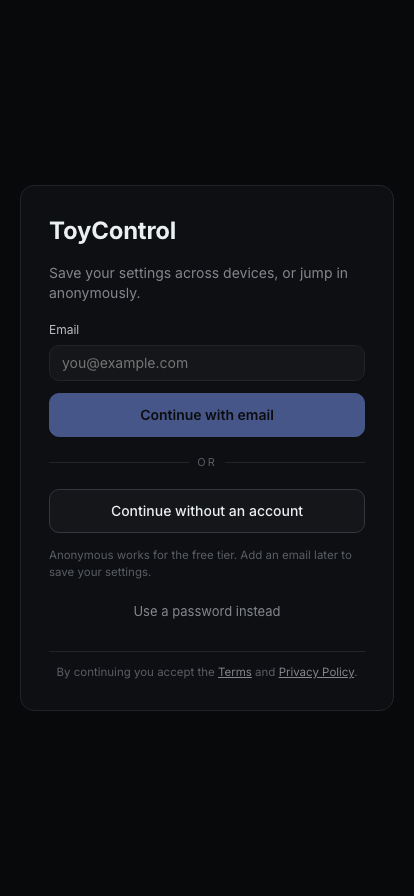
Either enter an email (recommended, so your settings save across devices) or tap Continue without an account to get straight in.
Step 2: The app shell
You are signed in. The screen has two parts. The sidebar on the left holds your devices. The main area on the right shows whichever source you are using right now.
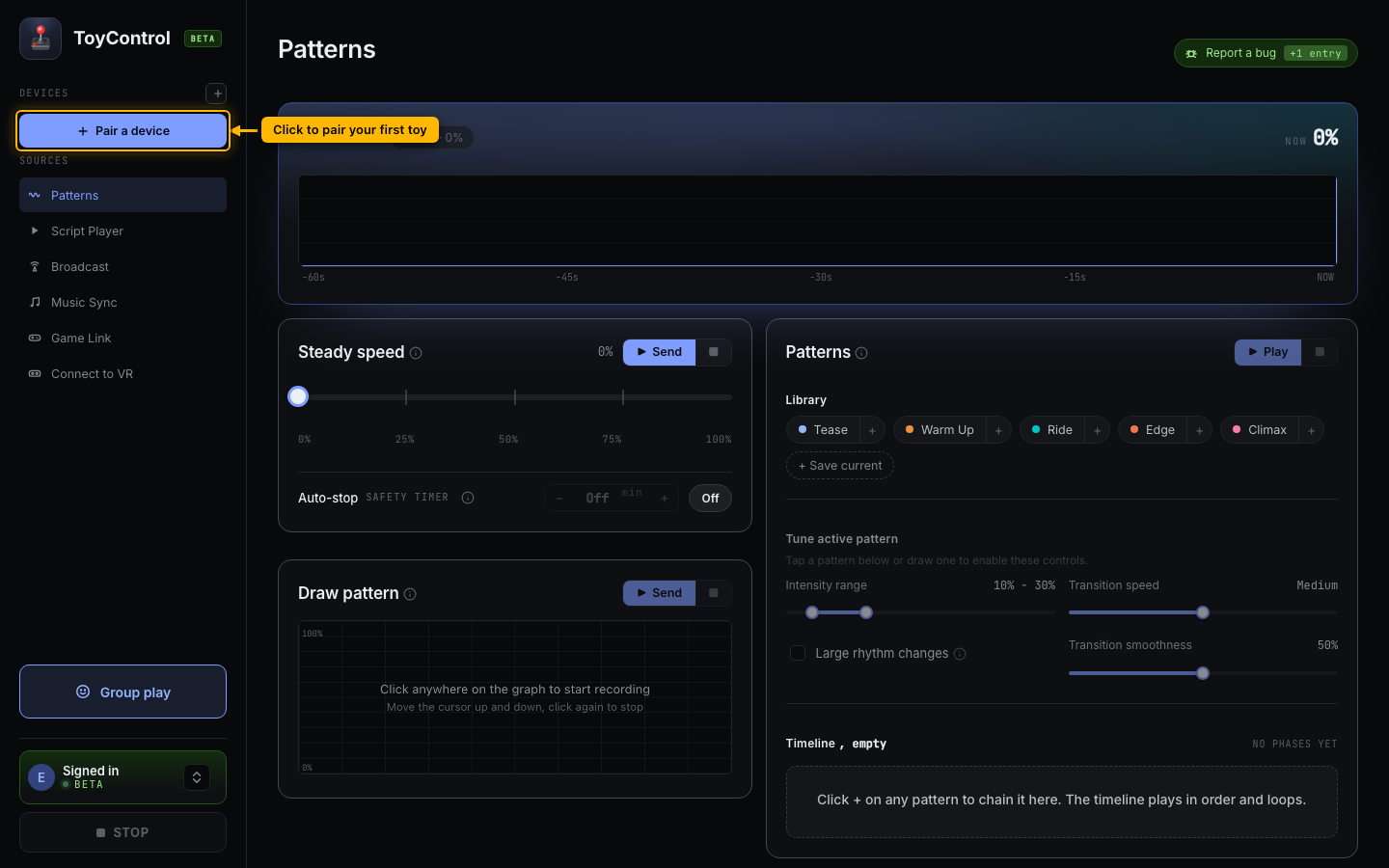
At this point the sidebar shows no devices because you have not paired anything yet.
Step 3: Open the device picker
Click the + button (or the "Pair a device" button) in the sidebar's Devices area. A picker modal opens.
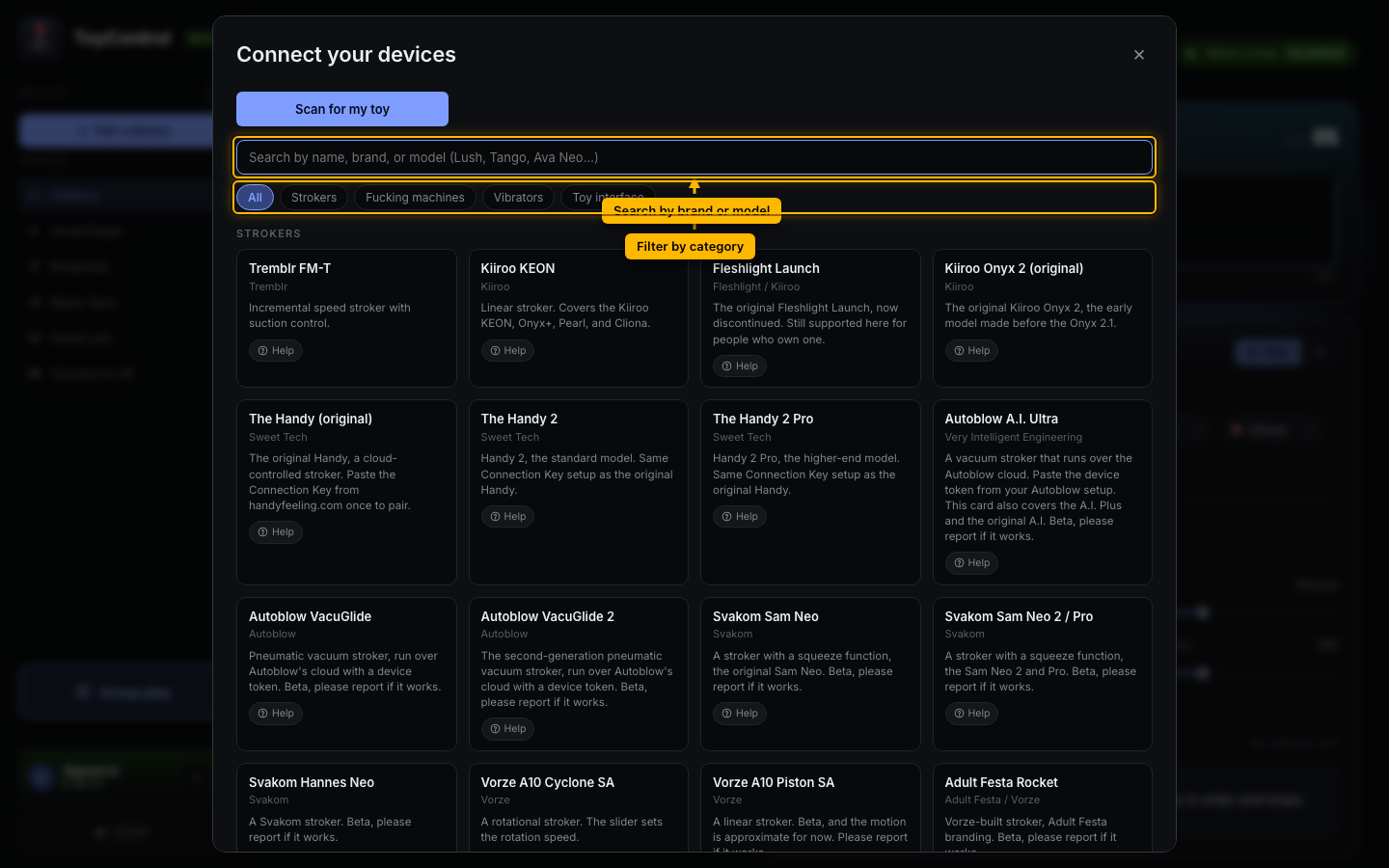
This is the catalogue. Scroll to find your toy or type its name in the search box at the top.
Step 4: Find your toy
For example, type Lovense to filter to Lovense models.
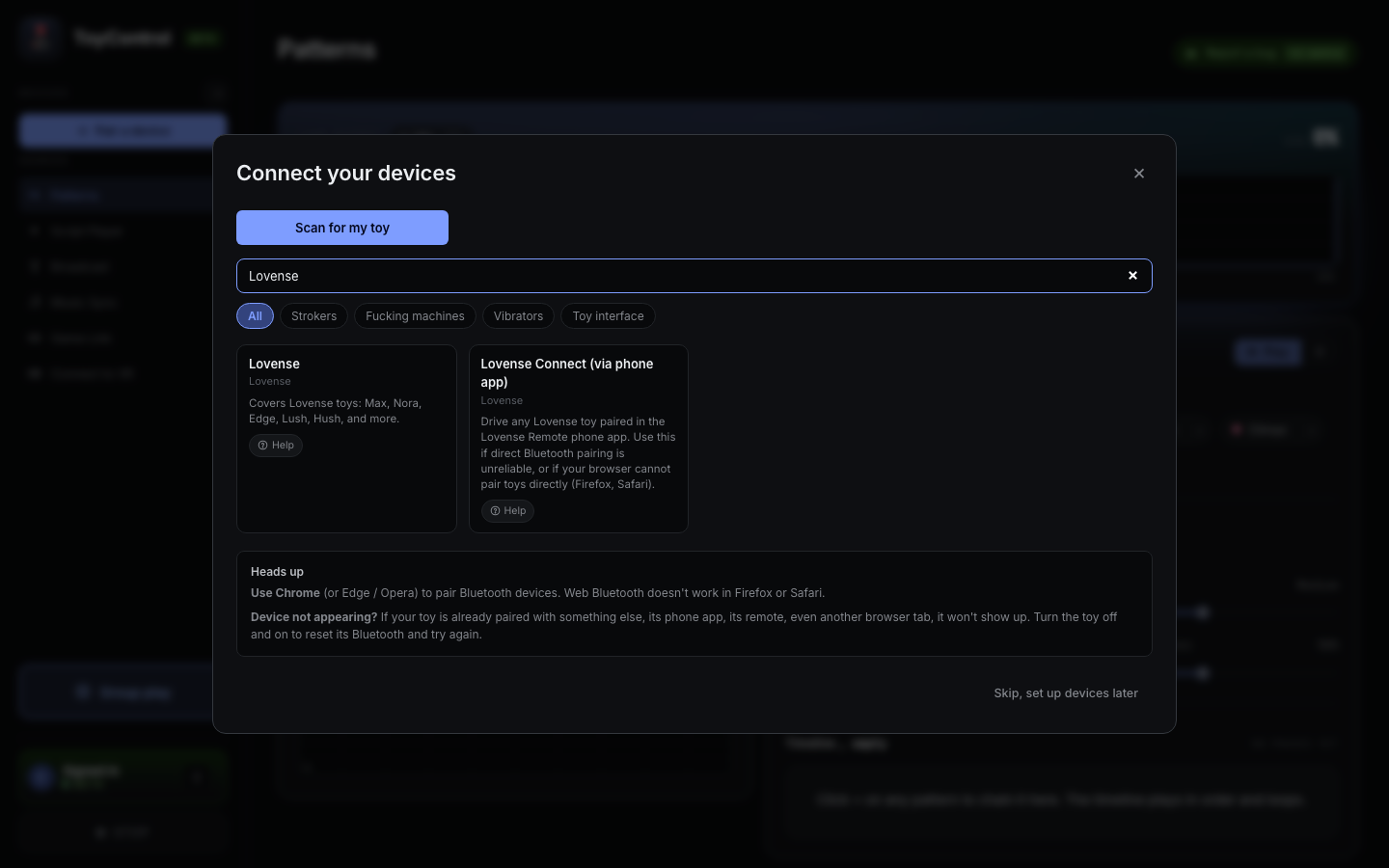
Click the card for your specific model.
Step 5: Confirm in the Bluetooth window
Your browser opens its own small Bluetooth picker (this part is the browser's UI, not ToyControl). Pick your toy from the list, click Pair.
This step does not have a screenshot above because it is rendered by the operating system, not by ToyControl.
Step 6: The toy appears
Once paired, your toy appears as a row in the sidebar with a green dot. Click the row to make it the active device.
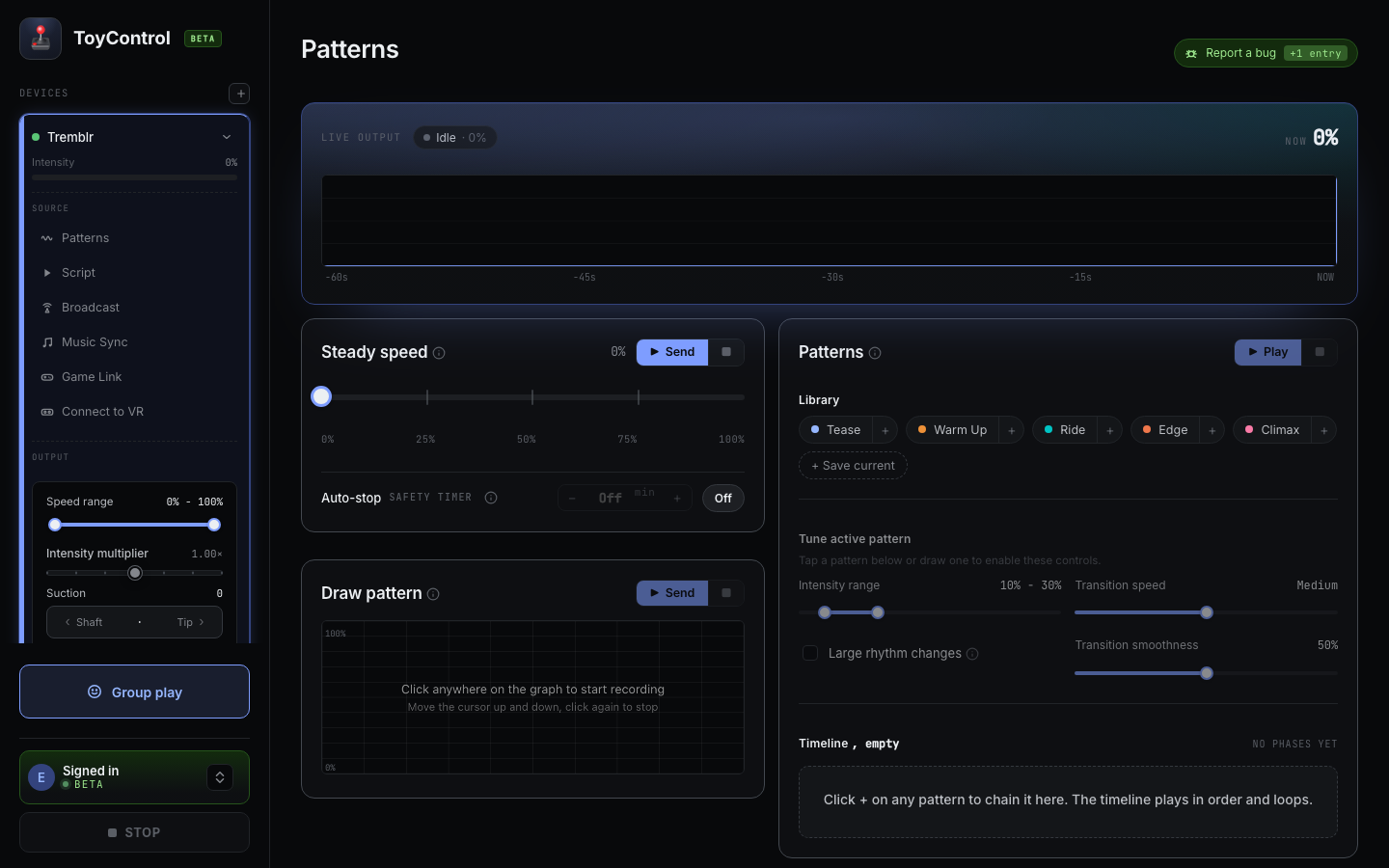
The intensity slider under the device name lets you scale that toy 0-150 percent.
Step 7: Test that it works
Click Test toy at the bottom of the screen. The toy ramps to maximum, holds for a second, ramps down. If you feel or hear it move, you are paired.
Step 8: Try a pattern
Click the Patterns tab. You see the five preset chips at the top (Tease, Warm Up, Ride, Edge, Climax) and the knobs for custom patterns underneath.
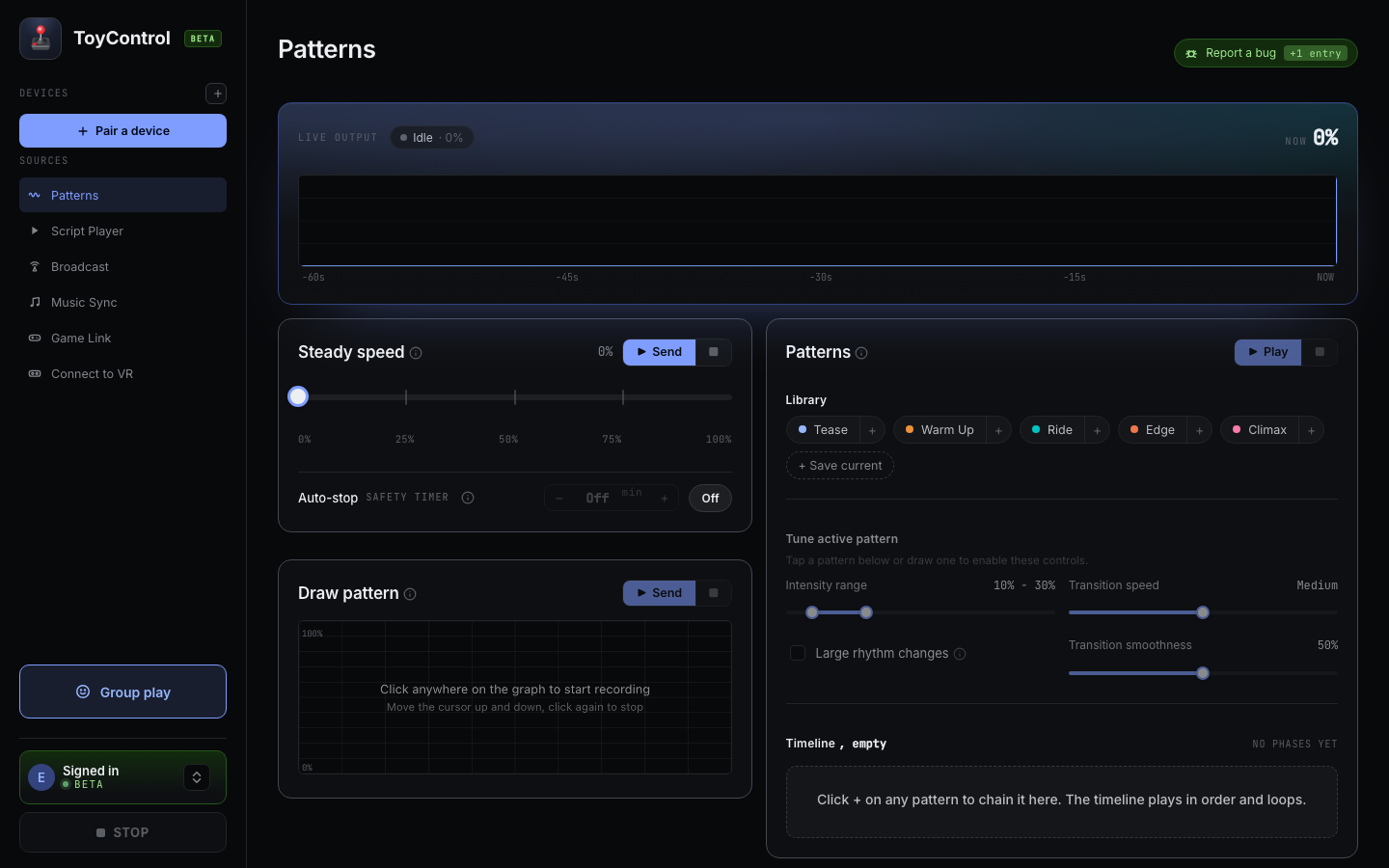
Click Tease. Click Play. The toy starts a gentle, varied rhythm.
Step 9: Pair a second toy (optional)
If you have another toy, click the + again. Pair it the same way. The sidebar now shows two rows.
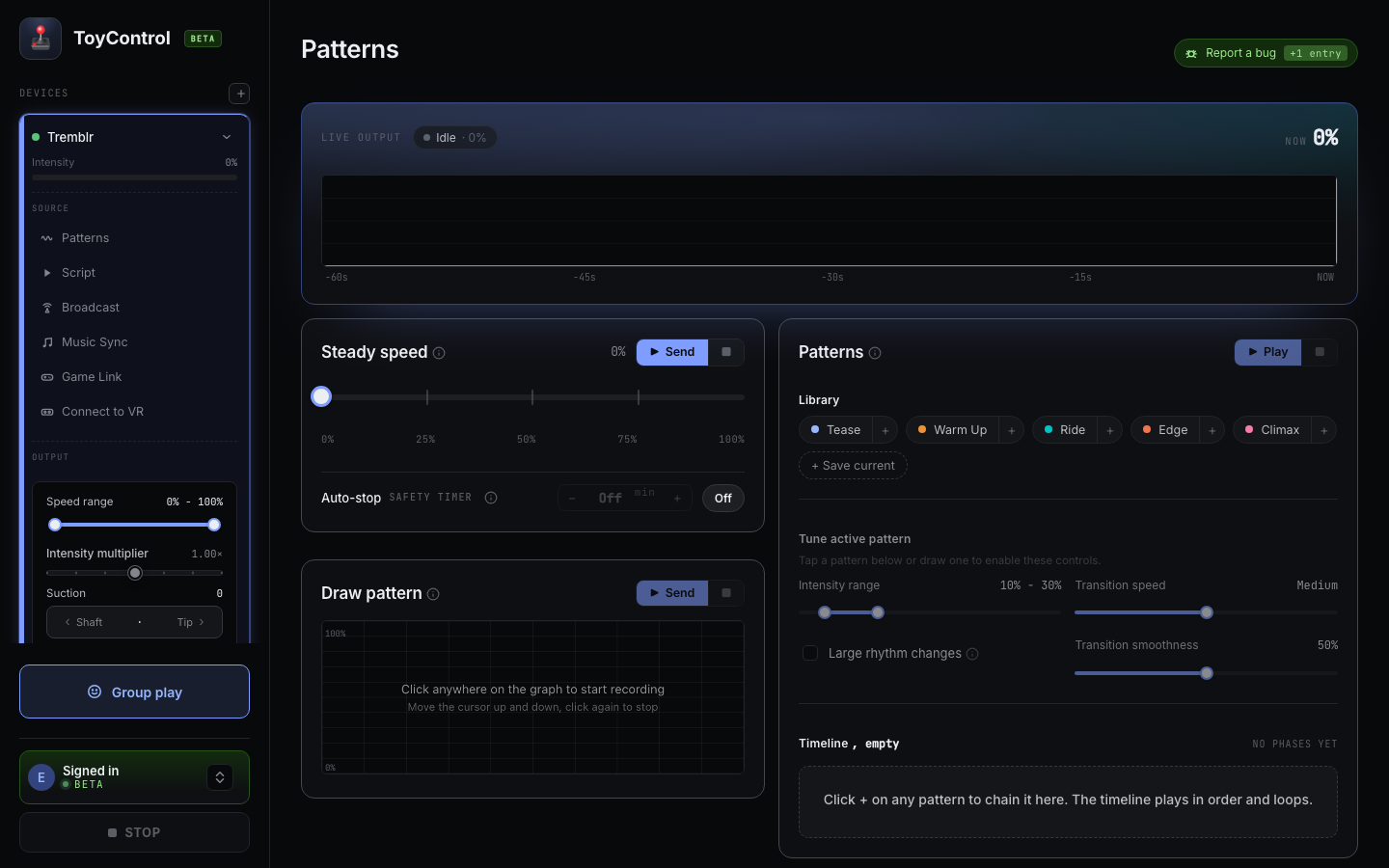
Each toy gets its own intensity slider in the sidebar and its own tab in the main area. You can run them on different sources or have one follow the other. See Running multiple toys at once.
What you have done
In under five minutes, you have:
- Created a ToyControl account.
- Paired a toy via the browser.
- Tested it.
- Started a pattern session.
That is the whole onboarding. From here, try:
- How to load a script into ToyControl for video-synced playback.
- How to start a remote play room for partner sessions.
- How to play scripts on Meta Quest if you have a VR headset.